Budget Laptop Buying Guide for Students and Families
Kwik-E Deals is reader-supported: some links may earn us a commission at no extra cost to you. Learn more.
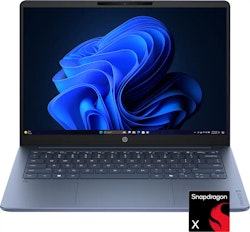
A budget laptop can be a great buy or a source of daily frustration, and the difference usually comes down to a few specs that are easy to overlook. This guide walks through what matters for students and families, what you can safely skip, and how to evaluate a laptop deal.
Start with what you'll actually do
Be honest about the main uses:
- Web, email, documents, video calls, streaming: Nearly any modern laptop can do this, but a few specs (below) make the difference between snappy and sluggish.
- School-specific software: Check with the school. Some courses require Windows or macOS apps, specific browsers, or minimum specs for testing software.
- Photo editing, coding, light video work: You'll want more memory and a better processor.
- Gaming: A different category altogether; true gaming laptops rarely fit a tight budget.
Chromebook, Windows, or Mac?
Chromebooks run ChromeOS and are built around the web browser and web apps. They tend to be simple, quick to start, and easy to manage, which makes them popular in schools. Check two things: whether any required software runs on ChromeOS, and the device's automatic update expiration date (Google publishes how long each model receives updates). A cheap Chromebook near the end of its update period is no bargain.
Windows laptops offer the widest range of hardware and software compatibility. They come in every price range, which also means the budget end includes some underpowered models.
MacBooks run macOS and are generally pricier, but older models and education pricing can bring them into reach. If your household already uses Apple devices, the integration may be worth it.
The specs that matter most
Memory (RAM)
RAM is often the biggest factor in whether a laptop feels fast with several browser tabs and apps open. Very low-memory laptops can struggle with modern web browsing and multitasking. Many reviewers consider 8GB a practical baseline for Windows, with 16GB more comfortable for heavier use; Chromebooks can manage with less because ChromeOS is lighter. Check whether memory is soldered (can't be upgraded later). If so, buy enough up front.
Storage
- Type: An SSD is far faster than an older spinning hard drive. Very cheap laptops may use slower eMMC storage. It works for light use but feels slower.
- Size: Windows and its updates take up a meaningful amount of space by themselves, so very small storage can fill up quickly. Cloud storage helps, but having enough local space avoids headaches.
Processor
Processor names are confusing, and they change each year. A few practical tips:
- Compare the generation as well as the family. A newer mid-range chip can outperform an older higher-tier one.
- Be cautious with the most entry-level chips if you multitask a lot.
- Search the exact processor model with words like "benchmark" or "review" to see how it performs in real use.
Screen
You stare at it all day, so it matters:
- Resolution: Full HD (1920×1080) or higher looks noticeably sharper than lower resolutions on typical laptop sizes.
- Brightness and panel type: IPS or OLED panels generally offer better viewing angles than older TN panels. Reviews often measure brightness; a dim screen is hard to use near windows.
- Size: 13–14 inches is easy to carry; 15–16 inches offers more room but more weight.
Battery, keyboard and ports
Manufacturer battery-life claims are usually measured under ideal conditions, so look at independent reviews for real-world numbers. Try a keyboard in a store if you can. And count your ports: USB-C charging, a headphone jack, and at least one USB-A port remain handy for many households.
Where budget laptops cut corners
Common compromises include dim screens, low memory, small or slow storage, plasticky builds, weak webcams and speakers, and short warranties. You can live with some of these (speakers and build quality, perhaps), but memory, storage and screen quality affect every minute of use.
Smart ways to save
- Look at last year's models. When new models launch, older ones often get discounted, and the performance difference can be small.
- Consider certified refurbished. Manufacturer refurbished laptops can offer a lot of value with a warranty. See our refurbished vs open-box vs new guide.
- Check education pricing. Many manufacturers offer student and educator discounts.
- Wait for sale events. Back-to-school season and late November are traditionally busy times for laptop deals. Our Black Friday guide explains how to judge them.
- Compare exact model numbers. The same laptop name can come in many configurations with different chips, memory and screens.
A quick checklist
- Operating system matches your software needs (and, for Chromebooks, the update date is far away).
- Enough RAM for your multitasking, ideally upgradable.
- SSD storage with room to grow.
- A Full HD (or better) IPS/OLED screen.
- Good independent reviews of that exact configuration.
- A return window long enough to test it.
Find today's laptop and computer deals on our electronics page. With this checklist, you'll know quickly which ones are worth a closer look.